
Whether you are an accountant balancing quarterly books, a business analyst reviewing market data, or a small business owner processing supplier invoices, you have likely run into the ultimate document frustration: trying to extract a complex financial table from a PDF file.
When you try to copy and paste a data grid directly from a PDF viewer into Microsoft Word or Excel, the clean structure completely shatters. Your neatly aligned rows turn into a single, unreadable wall of overlapping numbers, cell borders vanish, and columns shift randomly across the page.
Manually re-typing dozens of rows of financial records is not only a massive waste of valuable hours, but it also opens the door to costly data entry mistakes. In this technical guide, we will look at why data grids break during file conversion and outline exact steps to extract tables from PDF to Word without losing layout lines or corrupting your cell data.
The Root Cause: Why Table Gridlines Explode
To solve this formatting issue, you have to understand how a PDF treats a table grid. Unlike a native spreadsheet or Word document, a PDF has no true concept of an “active cell,” a “row header,” or a “column boundary.”
To a PDF file structure, a financial table is simply a visual illusion made of two separate layers:
- The Data Layer: A random string of text characters and numerical numbers positioned at specific coordinates on a blank page.
- The Vector Layer: A collection of separate black lines drawn over, under, and around those numbers to give the appearance of an organized table layout.
When a standard document converter processes this layout, it reads the lines and numbers as completely unrelated elements. It drops the horizontal lines as generic graphics and dumps the numeric figures onto the page using arbitrary spacing tabs. The moment the data hits your Word document, your structured ledger becomes a formatting nightmare.
How to Convert and Repair Table Lines in Microsoft Word
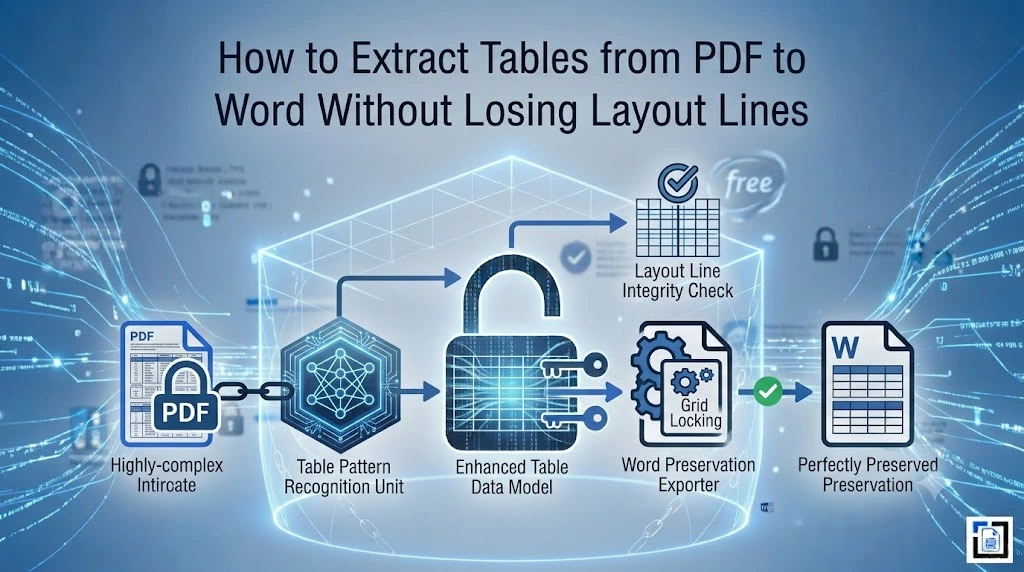
To successfully extract tables from PDF to Word without losing layout lines, your conversion software must map absolute visual coordinates into fluid, dynamic grid structures.
If your data layout requires minor structural adjustments after extraction, use this targeted workflow inside Microsoft Word to perfectly restore your borders and alignment:
1. Rebuild the Missing Grid Boundaries
If the converter extracted your financial figures accurately but dropped the physical border layout lines, you can force Word to automatically reconstruct the table boundaries based on text spacing tags.
- The Fix: Highlight the extracted raw data rows with your cursor. Navigate to the top ribbon and select the Insert menu tab. Click on Table, and from the dropdown list, choose Convert Text to Table. A properties panel will appear; select Tabs or Commas under the separator settings based on how your data is divided, and hit OK. Word will instantly generate a clean, unified table around your financial figures.
[Raw Scrambled Data String] ──> [Insert > Convert Text to Table] ──> [Perfect Restored Grid]
2. Activate Visual Gridlines
Sometimes, the structural cell partitions are fully present in your Word document, but they are completely invisible because the border lines are set to transparent or hidden mode.
- The Fix: Click inside any data cell within the broken table area to open the Table Tools layout tab at the top of your workspace screen. On the far left of the ribbon panel, toggle the View Gridlines option. This instantly displays soft, dotted guide lines on your screen, allowing you to easily adjust column widths and fix text wrapping errors before printing or saving.
3. Apply AutoFit to Balance Columns
When cells squeeze long accounting numbers into narrow, vertical lines, it can cause text clipping errors where critical monetary values get cut off or push outside your document margins.
- The Fix: Right-click the small crosshair anchor icon at the top-left corner of your table layout to select the entire data frame. Hover your mouse over AutoFit and click AutoFit to Contents. The column borders will automatically expand or shrink to perfectly accommodate your widest data strings without wrapping lines.
The Best Solution: High-Fidelity Coordinate Extraction
The absolute fastest way to bypass manual reconstruction entirely is to utilize an extraction tool that treats tables as unified data structures right from the beginning.
Our advanced document layout utility at Pdftoworder.com uses multi-pass coordinate mapping. Our system scans text strings and vector line intersections simultaneously, ensuring that financial ledgers, bank transactions, and corporate invoice structures are written into your downloaded .docx file as authentic, editable tables with their original layout gridlines perfectly intact.
Enterprise Financial Privacy Standards (Mammath™ Brand Ecosystem): We understand that financial statements contain highly sensitive transaction records, personal addresses, and proprietary company metrics. As a core member of the Mammath Group, Pdftoworder.com handles your corporate files under world-class data privacy guidelines. All uploads pass through encrypted SSL protocols, and our automated server infrastructure executes a mandatory data purge within 60 minutes or less from the initial transfer window. Your financial data is never permanently saved, analyzed, or indexed.
Once your layout lines are fully configured, you can edit your financial values in Word, copy the clean grid straight into Microsoft Excel for active formula processing, or export it back out as an optimized document layout!

Addy is an IT specialist with a strong focus on digital solutions and PDF technology. With years of experience exploring document software and online tools, he writes user-focused guides and articles for Pdftoworder.com to help simplify everyday document-related tasks.