
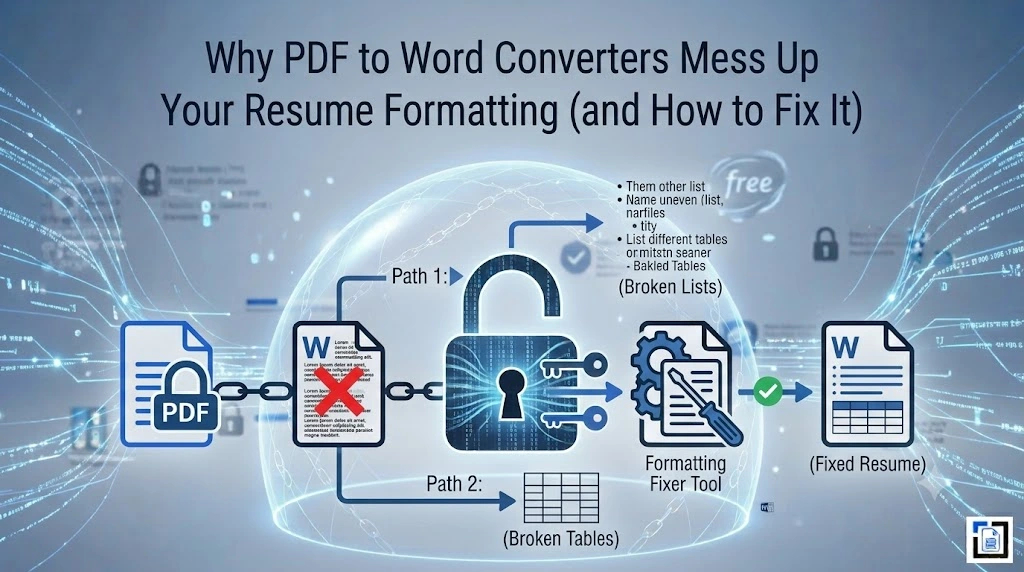
Imagine finding the absolute perfect job opening. The deadline is tonight, and you just need to make a quick update to your resume, add a recent certification, tweak a job title, or change your phone number. But there is a catch: you only have your resume saved as a PDF file, and your original Microsoft Word master copy is nowhere to be found.
In a hurry, you run it through an online PDF to Word converter. You download the file, open it in Microsoft Word, and your heart sinks. Your clean employment timelines are shattered, your text alignment is broken, your bullet points have turned into strange symbols, and your skills section is trapped inside an overlapping text box that refuses to move.
For job seekers, this layout breakdown is an absolute nightmare. In this guide, we will look at the technical reasons why converters struggle with resume layouts, how formatting glitches can hurt your chances with automated screening software, and step-by-step instructions to perfectly restore your CV.
The Technical Conflict: Why Resume Layouts Explode
The reason your layout scrambles comes down to a fundamental design conflict between PDF and Word document structures.
Resumes are highly dense design pieces. They use structural columns, sidebars, horizontal dividers, and precise spacing to pack an entire career onto one or two pages.
- PDFs are “Drawings”: When you save a resume as a PDF, the software locks every word into an absolute coordinate on the page (e.g., Place this word exactly 2 inches from the left and 4 inches from the top). It drops structural grid awareness to prioritize visual consistency.
- Word Files are “Rivers”: Microsoft Word does not use absolute coordinates. It uses fluid, cascading text streams. Text flows sequentially from line to line, controlled by margins, tabs, and paragraph spacing.
When a conversion engine attempts to turn a PDF back into a Word file, it has to guess how those absolute coordinates relate to one another. To keep things looking correct on your screen, the engine often wraps text blocks inside floating boxes or inserts hundreds of hidden tab spaces. The moment you type a single new letter into that converted file, the entire delicate framework collapses.
The Invisible Risk: How Broken Formatting Flags ATS Systems
Messy formatting isn’t just an eyesore for human recruiters; it can cause your resume to be instantly rejected by an Applicant Tracking System (ATS).
Most modern mid-to-large-scale companies use ATS platforms to automatically parse and filter incoming applications before a human ever reads them.
[Your Converted PDF] ──> [Hidden Text Boxes / Hard Tabs] ──> [ATS Parser Fails] ──> [Automatic Rejection]
When an ATS bot encounters a Word document filled with overlapping text layers, floating shapes, or broken character symbols (common byproducts of bad conversion algorithms), it cannot read the text sequentially. It sees your job titles, dates, and skills as an unreadable scramble of text code. If the machine cannot extract your data, your application is quietly filtered out.
Step-by-Step: How to Repair Your Converted Resume in Word
If you used a utility to extract your document framework and need to clean it up manually for an upcoming job application, use these targeted formatting steps to repair the damage.
1. Eliminate the Floating Text Boxes
Converters frequently trap your sidebar text or contact info inside individual structural frames called text boxes. These break text flow and confuse ATS scanners.
- The Fix: Select the text box border, copy the text inside (
Ctrl + C/Cmd + C), and paste it directly into the main document body as plain text. Delete the empty text box outline entirely. Use standard margins or native table properties to create your side-by-side columns instead.
2. Reveal and Clear Hidden Formatting Traps
If your text jumps wildly across the screen when you hit backspace, the converter likely injected hidden tab markers to simulate spacing.
- The Fix: On Word’s Home tab, click the Show/Hide Paragraph Marks button (the
¶icon). This instantly reveals all hidden spaces, tabs, and section breaks. Manually delete excessive tab arrows and replace them with standard paragraph indents or clean margins.
3. Repair Corrupted Bullet Points
When font encodings shift during processing, your clean resume bullet points can easily turn into weird rectangular boxes or question marks.
- The Fix: Highlight your entire list, click the Bullet Points dropdown list in the ribbon menu, and re-select a standard dot or square design element. This overwrites the broken character string and applies clean, machine-readable formatting tags.
How to Prevent Resume Disasters Moving Forward
The absolute best way to minimize formatting issues from the start is to process your files through a highly precise parsing grid framework.
Our clean utility at Pdftoworder.com utilizes specialized document mapping configurations designed to identify text alignments without relying on cluttered text boxes or hidden layers.
The Mammath™ Quality & Privacy Promise: Managed under the strict corporate guidelines of the Mammath Group, our platform ensures your professional history, phone number, and address are handled with complete confidentiality. All files processed through our secure cloud network are subjected to a mandatory, automated server wipe within 60 minutes or less. We never sell your resume metrics or hold your document data on our systems.
Once your edits are finished in Word, remember to save a backup .docx copy for future updates, and export a clean, optimized PDF to send out to recruiters!

Addy is an IT specialist with a strong focus on digital solutions and PDF technology. With years of experience exploring document software and online tools, he writes user-focused guides and articles for Pdftoworder.com to help simplify everyday document-related tasks.